Click or Drag-n-Drop
PNG, JPG or GIF, Up-to 2048 x 2048 px
Click or Drag-n-Drop
PNG, JPG or GIF, Up-to 2048 x 2048 px
Click or Drag-n-Drop
PNG, JPG or GIF, Up-to 2048 x 2048 px
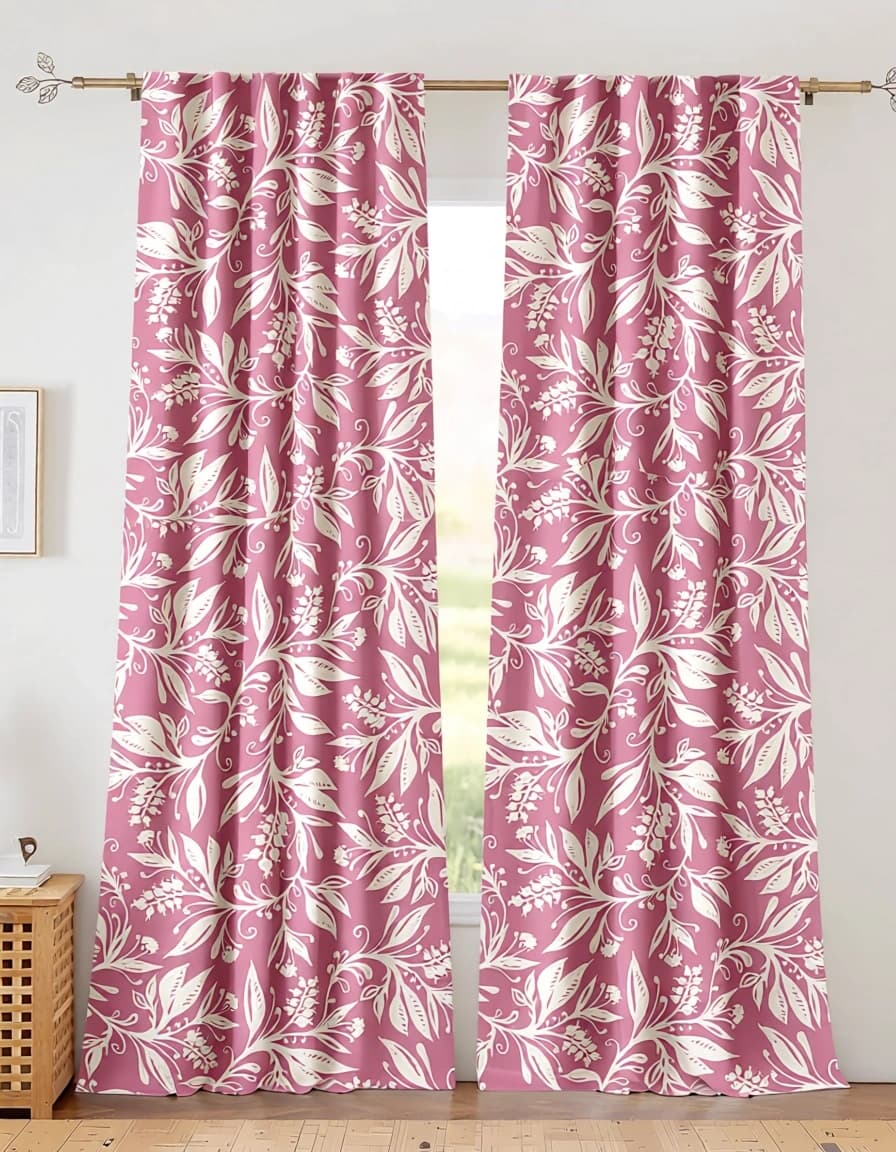
Apply Texture Qwen Image Edit: AI-Powered Texture Application Model
What is Apply Texture Qwen Image Edit?
Apply Texture Qwen Image Edit is a specialized image-to-image AI model built on Qwen's Image Edit 2509 architecture with fine-tuned LoRA adapters. This model excels at seamlessly applying specific textures to objects, buildings, architectural elements, and sprites based on natural language prompts like "Apply wood siding texture to building walls" or "Add brushed metal texture to product surface." Unlike general image editors, this model understands texture application contextually, maintaining visual consistency across complex surfaces while preserving the original structure and lighting of your input images. It's designed specifically for creators who need precise, repeatable texture editing without manual masking or extensive photo manipulation skills.
Key Features
- Text-Driven Texture Application: Apply materials using descriptive prompts—wood, metal, fabric, stone, and custom textures
- Multi-Image Support: Process up to three images simultaneously for batch texture editing or comparative workflows
- LoRA Adapter System: Built-in "texture_apply" LoRA with support for additional custom LoRA models via URL
- Flexible Aspect Ratios: Maintain original proportions or export in standard ratios (1:1, 16:9, 4:5, etc.)
- Recursive Processing: Apply multiple texture layers or refine results through iterative edits
- Format Optimization: Output as JPEG, PNG, or WEBP with granular quality control (1-100 scale)
- Open Source: Apache 2.0 license enables commercial use and custom implementations
Best Use Cases
Game Development: Rapidly texture 3D-rendered sprites, environment assets, and building facades with consistent material properties across entire asset libraries.
Architectural Visualization: Transform building renderings by applying realistic materials—brick, concrete, glass panels—to facades without re-rendering.
Product Design: Experiment with surface finishes on product mockups, testing wood grains, metallic textures, or fabric patterns before physical prototyping.
Digital Art & Concept Work: Apply artistic textures to illustrations, create texture variations for concept exploration, or unify visual styles across mixed-media projects.
E-commerce & Marketing: Enhance product photography with premium material textures or create multiple texture variants from a single product shot.
Prompt Tips and Output Quality
Effective Texture Prompts: Be specific about material type and application area. Strong prompts: "Apply rough concrete texture to exterior walls," "Add polished oak wood grain to furniture surfaces," "Overlay weathered copper patina on metal roof." Weak prompts: "Make it look better," "Add texture."
Image Quality Considerations: Start with high-resolution input images (1024px+ on the shortest side) for best texture detail. The model preserves edge sharpness and lighting information, so well-lit source images produce more realistic results.
Parameter Tuning: Use seed values for reproducible results when refining texture application—essential for client revisions or batch consistency. Set aspect_ratio to "match_input_image" to maintain original proportions. For web delivery, use WEBP format at quality 95 for optimal file size and visual fidelity.
Advanced Workflows: Load custom LoRA models via URL (lora_2_url, lora_3_url) to apply specialized texture styles beyond the built-in options. Process the same image multiple times with different prompts for layered texture effects.
FAQs
Q: Is Apply Texture Qwen Image Edit open source?
Yes, it's released under the Apache 2.0 license, permitting commercial use, modification, and distribution without licensing fees.
Q: How is this different from Photoshop texture overlays or other image editors?
Traditional editors require manual masking and blending. This model intelligently understands object boundaries and surface context from your text prompt, automatically applying textures where they make semantic sense while respecting lighting and perspective.
Q: What parameters should I tweak for best results?
Start with detailed prompts and high-quality input images. Adjust the seed parameter to lock results during iteration. Use quality: 95 and image_format: webp for production. Experiment with custom LoRA models via URL parameters for specialized texture styles.
Q: Can I apply multiple textures to different parts of the same image?
Yes, through recursive application. Apply one texture, then use the output as image_1 for a new request with a different texture prompt targeting another area.
Q: Does aspect ratio affect texture quality?
"Match input" preserves original detail. Non-matching ratios may crop or letterbox, potentially affecting how textures map to surfaces. For texture precision, maintain aspect ratios close to your source image.
Q: What image formats work best for input?
The model accepts standard web formats via URL. High-resolution JPEGs and PNGs (1024px+) deliver optimal texture detail and cleaner edge preservation compared to heavily compressed images.
Popular Models