Click or Drag-n-Drop
PNG, JPG or GIF, Up-to 2048 x 2048 px
Click or Drag-n-Drop
PNG, JPG or GIF, Up-to 2048 x 2048 px
Click or Drag-n-Drop
PNG, JPG or GIF, Up-to 2048 x 2048 px
Qwen-Image-Edit-2509-White_to_Scene: Image-to-Image Editing Model
What is Qwen-Image-Edit-2509-White_to_Scene?
Qwen-Image-Edit-2509-White_to_Scene is a specialized image-to-image AI model fine-tuned from Qwen/Qwen-Image-Edit-2509 for transforming white background images into rich, contextual scenes. This model excels at seamlessly placing subjects—like products, vehicles, or people—into realistic outdoor or indoor environments. Built on the Diffusers library and leveraging advanced image fusion techniques, it enables creators to generate professional-quality edits without complex compositing workflows. Whether you're building an e-commerce product visualizer or creating marketing assets, this model delivers high-fidelity scene generation with natural lighting and environmental context.
Key Features
- White-to-Scene Transformation: Converts isolated subjects on white backgrounds into fully realized environments with consistent lighting and perspective
- Multi-Image Support: Process up to three images simultaneously for blending, comparison, or complex compositions
- LoRA Integration: Built-in product photography LoRA enhances commercial imagery with professional-grade results
- Flexible Aspect Ratios: Supports 11 preset ratios including 16:9, 1:1, 9:16, plus input-matching for platform-specific outputs
- Reproducible Generation: Seed control ensures consistent results across multiple runs for production workflows
- Format Optimization: Output images in JPEG, PNG, or WebP with adjustable quality settings (1-100)
Best Use Cases
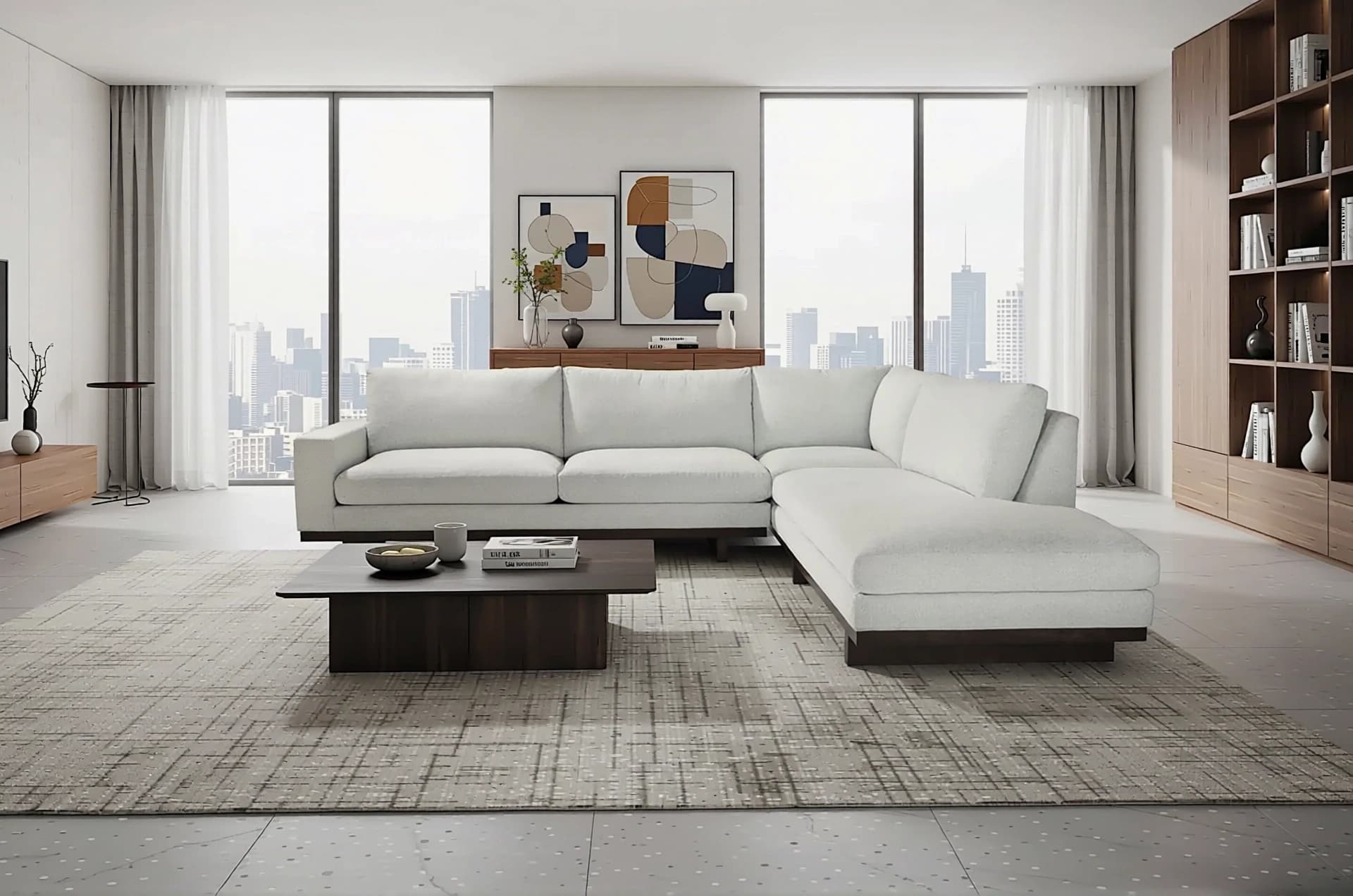
E-commerce and Product Photography: Transform product shots on white backgrounds into lifestyle scenes—place furniture in living rooms, cars on mountain roads, or watches in luxury settings without expensive photoshoots.
Marketing and Advertising: Generate multiple environmental variations of the same subject for A/B testing, seasonal campaigns, or regional market adaptation.
Real Estate and Automotive: Visualize vehicles in different settings or stage empty spaces with realistic context for listings and promotional materials.
Creative Design and Mockups: Rapidly prototype visual concepts by placing design elements into realistic scenes for client presentations or concept validation.
Prompt Tips and Output Quality
Be Specific About Environment Details: Instead of "outdoor scene," write "sunny afternoon in a modern urban plaza with trees and pedestrians" for precise results.
Layer Your Descriptions: Structure prompts with subject placement first, then environment, then lighting: "Place the red sedan in a mountain landscape during golden hour with soft shadows."
Leverage the Product Photography LoRA: When editing commercial items, the built-in LoRA automatically enhances lighting, reflections, and material rendering—specify desired qualities like "natural glow" or "studio lighting."
Use Seed Values Strategically: Set a specific seed (not -1) when iterating on prompts to isolate the effect of prompt changes. Switch to -1 for exploring creative variations.
Aspect Ratio Considerations: Match your output ratio to the target platform—use 1:1 for Instagram posts, 16:9 for YouTube thumbnails, or "match_input_image" to preserve original dimensions.
Quality vs. File Size: For web delivery, quality settings between 85-95 with WebP format offer the best balance of visual fidelity and loading speed.
FAQs
Is Qwen-Image-Edit-2509-White_to_Scene open-source?
This is a fine-tuned version of the Qwen-Image-Edit-2509 base model. Check the original model's licensing on ModelScope or Hugging Face for commercial usage terms.
How is this different from general image-to-image models?
Unlike generic editors, this model is specifically trained for white-background-to-scene transformation. It understands how to maintain subject integrity while generating coherent environmental context, lighting, and shadows—eliminating common compositing artifacts.
What parameters should I tweak for best results?
Start with a descriptive prompt and the default product_photography LoRA. Adjust aspect_ratio to match your output needs. Use a fixed seed during prompt refinement, then remove it for final variations. Set quality to 95 for print or master assets.
Can I use custom LoRA models?
Yes—the model accepts two additional LoRA URLs (lora_2_url, lora_3_url) for style customization. This enables you to layer brand-specific aesthetics or artistic filters on top of the base scene generation.
Why use multiple images instead of just one?
Multi-image inputs enable advanced workflows like subject swapping, element blending, or before/after comparisons within a single generation. This is particularly useful for product variations or compositional experiments.
What's the recommended workflow for production use?
Upload a clean white-background image, write a detailed environment prompt, select your aspect ratio, and set a seed. Review the output, refine your prompt based on results, then generate final variations with seed set to -1 for creative diversity while maintaining the refined prompt structure.
Popular Models